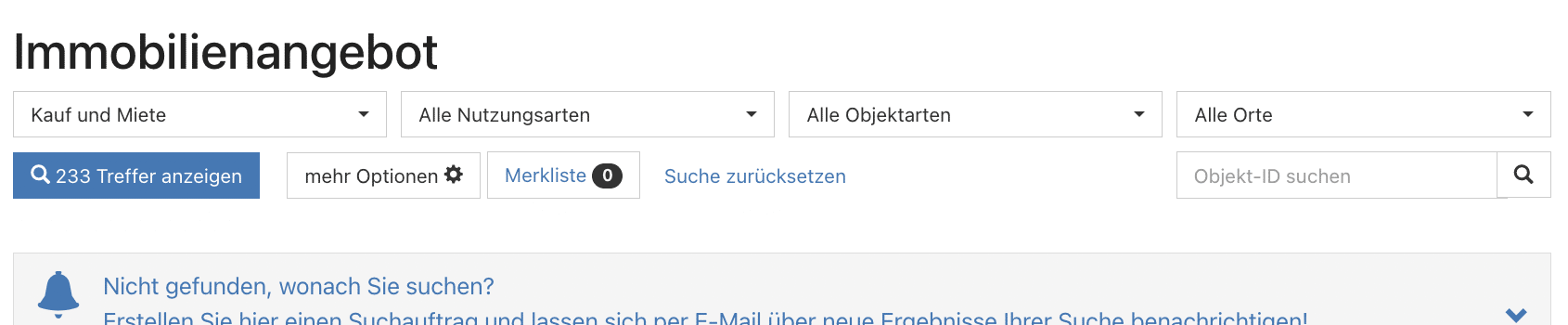
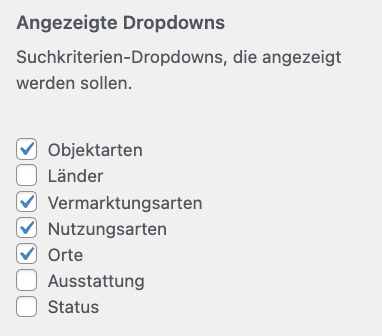
With the WP-ImmoMakler Customizer, you can customize the property search mask according to your requirements. The search mask is included as standard in WP-ImmoMakler from the PLUS license.
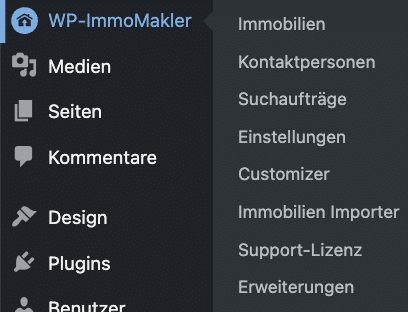
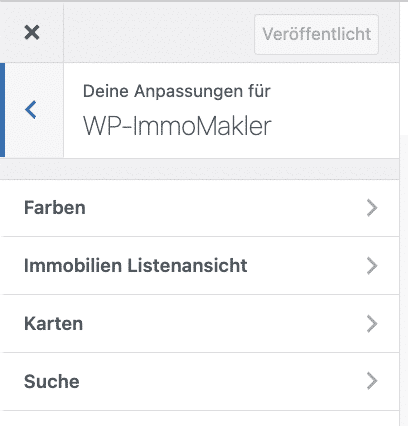
To customize the search mask, navigate in your WordPress backend to: WP-ImmoMakler → Customizer → Search.


The WP-ImmoMakler demo gives you an impression of the default settings of the search mask.
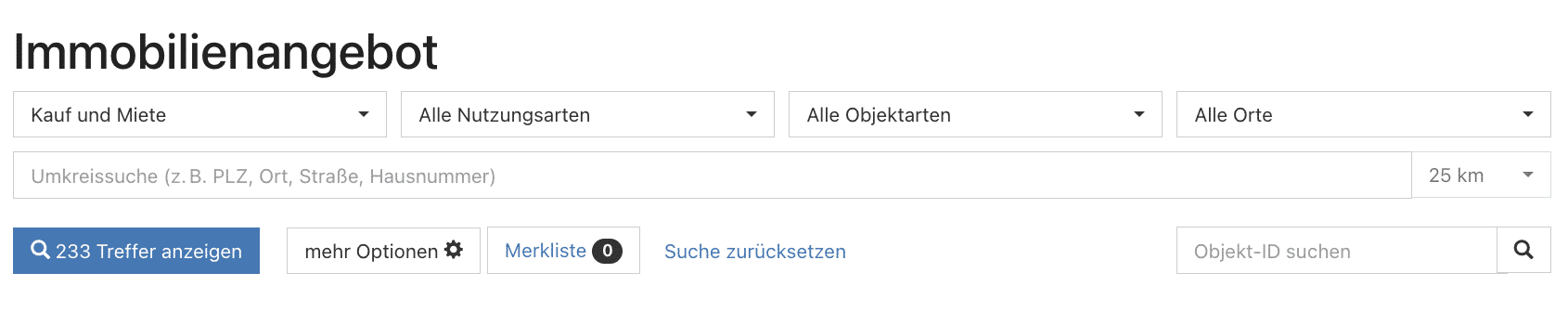
Customize radius search
The radius search allows prospective buyers to enter an address, a town, a zip code or a street and select the search radius.
⚠️ Important:
For the proximity search to work, you must enter and activate the Google API keys in your WordPress backend under WP-ImmoMakler → Interfaces → Google Maps.
By default, distances of 5 km, 10 km, 25 km, 50 km, 100 km, 200 km and 500 km are available.
To customize the default distance, please add the following filter to the functions.php in your WP-ImmoMakler ChildSkin. There you can define the distances, e.g. add 1 km and 2 km or remove 200 km and 500 km.
add_filter('immomakler_radiussearch_radius_values', function() {
return [ 1, 2, 5, 10, 25, 50, 100 ];
});
Flexibly show and hide search categories
✔ Status (open, reserved, sold, rented)
⚠️ Only the criteria (e.g. fitted kitchen, balcony, garden, apartment, house, etc.) for which properties are currently available are displayed in the search mask.
Customize "more options" settings
The following filters are available as standard under "More options":
If "Buy" or "Rent" is selected in the search mask, the selection is adjusted automatically: The filters that do not apply (e.g. "cold rent" for purchase) are hidden.
Customize filters
You can use the Customizer to:
Deactivate the "More options" function completely or show it permanently.
✅ Decide whether the filters are displayed as sliders (standard view) or text fields.

The value ranges of the individual filters are based on the currently available objects. Example: If only properties with up to 4 rooms are currently on offer, the selectable range is 1 to 4 rooms.
If you would like to adjust the values displayed in the search, please store the following filter in your WP-Immomakler ChildSkin.
You can make the following adjustments in this filter:
-
- Change the labels of the filters
- Adjust the increment of the slider
- Add additional filters or remove unnecessary ones
add_filter('immomakler_search_enabled_ranges', 'my_immomakler_search_ranges');
function my_immomakler_search_ranges( $ranges ) {
return array(
'immomakler_search_size' => array(
'label' => 'Fläche',
'slug' => 'qm',
'unit' => 'm²',
'decimals' => 0,
'meta_key' => 'flaeche',
'slider_step' => 5
),
'immomakler_search_rooms' => array(
'label' => 'Anzahl Zimmer',
'slug' => 'zimmer',
'unit' => '',
'decimals' => 1,
'meta_key' => 'anzahl_zimmer',
'slider_step' => 0.5
),
'immomakler_search_price_rent' => array(
'label' => 'Kaltmiete',
'slug' => 'kaltmiete',
'unit' => '€',
'decimals' => 0,
'meta_key' => 'kaltmiete',
'slider_step' => 100
),
'immomakler_search_price_buy' => array(
'label' => 'Kaufpreis',
'slug' => 'kaufpreis',
'unit' => '€',
'decimals' => 0,
'meta_key' => 'kaufpreis',
'slider_step' => 25000
),
);
}
|
Add another filter option
If you need to add another filter option, e.g. "Floors", you would first need to make it filterable using the following filter:
add_filter('immomakler_searchable_postmeta_keys', function ($keys) {
$keys[]= 'etage';
return $keys;
})
Adjust the order of the filter options
If you want to adjust the order of the filter options, please add the following filter to the functions.php in your WP-ImmoMakler ChildSkin and adjust the order as you wish:
add_filter('immomakler_search_enabled_taxonomies', 'my_custom_immomakler_search_taxonomies');
function my_custom_immomakler_search_taxonomies( $taxomonies ) {
return array(
'immomakler_object_vermarktung',
'immomakler_object_nutzungsart',
'immomakler_object_type',
'immomakler_object_location',
);
}
Further setting options in the Customizer:
✅ Automatically restrict search selection: If a search parameter is selected, the others are restricted according to the properties then available. This means that no combinations can be selected that produce an empty search result.
These options are activated by default and can be deactivated in the Customizer if required.
Multiple selection
You also have the option of activating multiple selection in the Customizer. This gives interested parties the opportunity to search in different locations and/or districts at the same time or to select different equipment categories that are important to them.
Unlock regional additions